How to use a Firewall and a VPN at the same time on Android without root, without external self-hosted servers (2026)
No work profile required. Requirements: Android 8.0+, and 192.25MB of storage.

Technical overview: We're going to install InviziblePRO, then setup WG-Tunnel to whichever VPN provider we want to use, and finally route all connections from InviziblePRO to go through the WG-Tunnel local SOCKS5 proxy.
Index
- What's changed?
- Alternative Solutions
- Security Tests
- Requirements
- Setup
- F.A.Q.
- How do I make sure InviziblePRO and WG-Tunnel stay updated?
- Will this protect my Android Work profile?
- Which DNS resolvers are used in this setup?
- Why isn't there username and password authentication enabled for the SOCKS5 proxy?
- How were the security tests performed?
- How do I block an app's internet access?
- How do I setup DNS filtering?
- How do I exclude an app from the VPN?
What's changed?
This update of the guide features a massive breakthrough in the way the connection is setup. We no longer need the Android Work-Profile, since we'll be using the open source app "WG-Tunnel", developed by Zane Schepke.
Previous versions of this setup used the Android Work-Profile to connect to two VPNs at the same time, and then routed all connections between them using SOCKS5 proxies, like this:
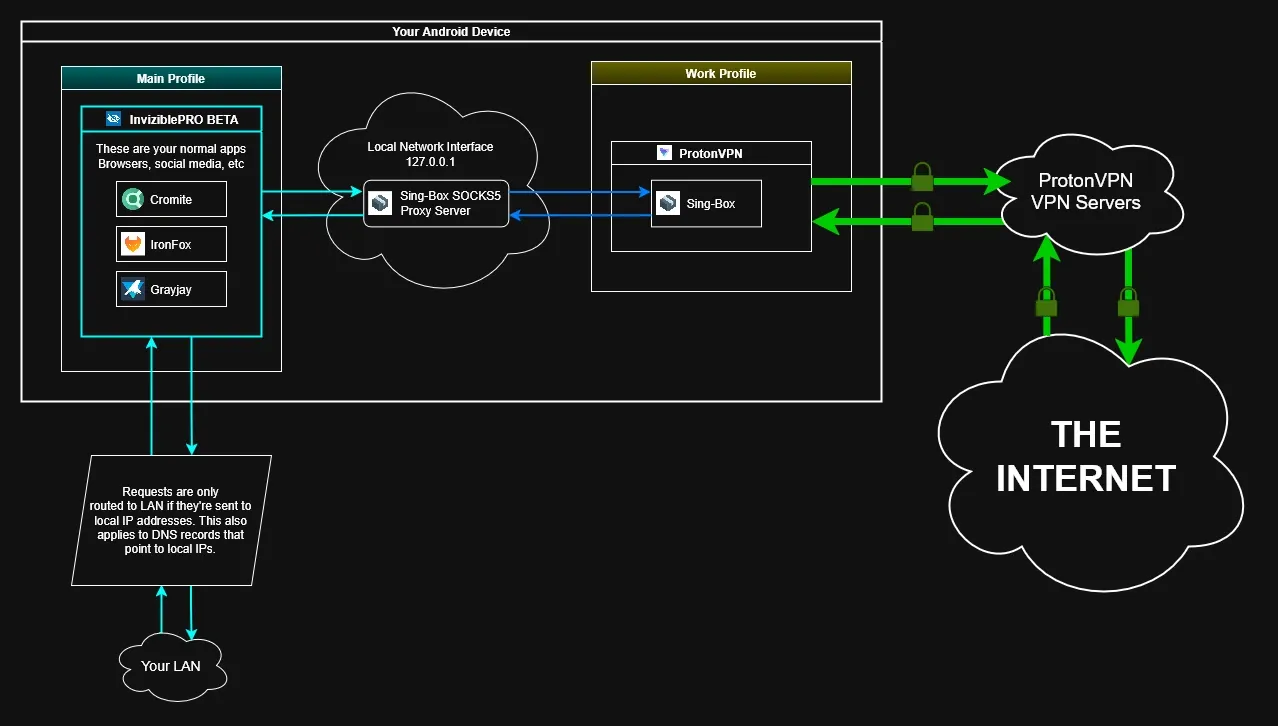
All of that is no longer necessary, since we can now leverage the "Proxied Backend" feature of WG-Tunnel, allowing us to route all connections from a firewall app (such as InviziblePRO or RethinkDNS) directly to the SOCKS5 proxy offered by WG-Tunnel, which then sends our traffic to whichever WireGuard backend we've chosen in the app. All done in the same Android profile.
In practice, this means that this setup will now work for all devices, regardless of how poorly the VPN service in the Android Work Profile might have been implemented by OEMs.
This new approach also means this setup now requires fewer storage space, fewer RAM and fewer battery. It's also easier to configure overall.
Alternative Solutions
Before arriving at this configuration, many alternative solutions were considered.
Proposal #1 - Firewall app with an external SOCKS5 proxy
Instead of using a VPN app, install any firewall app and then connect it to an external SOCKS5 proxy server. This would have the benefit of masking the source IP when interacting with the internet, and also not having to use so many apps simultaneously. Encrypted DNS resolutions could be achieved by using the android built-in "Private DNS" feature, which uses DoH.
Problem 1-A: The SOCKS5 protocol is not encrypted. All content is sent as-is from the SOCKS5 client to the SOCKS5 server. This would mean that network content such as insecure HTTP and DoH resolver addresses can still be intercepted by network intruders and ISPs.
Problem 1-B: VPN providers offer just that, VPNs. To get a SOCKS5 proxy server that you can trust you'd need to set it up yourself, which would cause you to have recurring monthly costs, but only a portion of the benefits of a full-fledged VPN.
Proposal #2 - VPN with split-tunneling
Instead of using a dedicated firewall app, use a regular VPN app and enable Settings → Network and Internet → VPN → Your-VPN-Here → Block connections without VPN, and also enable split-tunneling on the VPN app. This would allow selective blocking of internet access to any android app, while also maintaining all of the benefits of a full VPN.
Problem 2-A: No network-specific filtering. When using the split-tunneling configuration, either you allow full network access, or you block it completely. There is no fine-grained control. With a dedicated firewall app you could control LAN access, mobile data access, and wifi access separately. This fine-grained access allows you to restrict LAN access while still allowing WiFi access, preventing attackers (Like eBay or BeFF) from scanning your local WiFi.
Problem 2-B: DNS filtering. When using a VPN app you can not import DNS block-lists locally. Instead you must rely on DNS filtering done at the server-level, like how a PiHole operates. This has the disadvantage of forcing you to self-host an internet-facing server in order to have DNS filtering on your device, possibly incurring recurring monthly costs.
Proposal #3 - Firewall apps SOCKS5 proxied to real VPNs in the Android Work Profile
All implementations of proposal #3 suffer from the problem of not being compatible with all devices and having high battery usage due to differing OEM implementations of the VPN service in the Android Work Profile. For a long time this was an accepted compromise.
Implementation 3-A: Netguard, Island, Every Proxy, and personalDNSfilter
This implementation used Netguard as a firewall, then routed all traffic to a SOCKS5 proxy hosted on the VPN network interface, where a SOCKS5 proxy was run by Every Proxy from the Android Work Profile. The traffic sent by Every Proxy was captured by the VPN in personalDNSfilter, and then the DNS requests were filtered.
Further details are available in the post titled "How to use NetGuard + personalDNSFilter+ Any VPN, without root, without external self-hosted servers".
This was the first version of this guide, and it had several problems.
Problem 3-A-1: No VPN. This implementation merely featured firewall control, and DNS filtering, but no VPN could be used with this setup.
Problem 3-A-2: Proprietary software. "Every Proxy" and "Island" are proprietary apps.
Problem 3-A-3: UDP leaks. Netguard showed UDP leaks when routing traffic to a SOCKS5 proxy.
Problem 3-A-4: DNS leaks. Somehow, there were also DNS leaks in this setup.
Implementation 3-B: RethinkDNS, Insular, Sing-box and a VPN
This implementation iterated on the previous version and replaced Netguard + personalDNSfilter with RethinkDNS. This allowed us to use an actual VPN in the Android Work Profile VPN slot rather than having it occupied by personalDNSfilter. Some basic tests were run on this setup, and it did not have any UDP leaks nor DNS leaks.
In this iteration we also replaced Island with Insular, and "Every Proxy" with Sing-Box, this removing the need for proprietary software.
Further details are available in the post titled "How to use a Firewall and a VPN at the same time on Android without root, without external self-hosted servers".
Problem 3-B-1: No LAN access. By default, all attempts to access LAN IPs were blocked, because they would be routed to the VPN instead of to the LAN. To correct this, you could enable "Do not route Private IPs" in "Configure -> Network" in RethinkDNS.
Problem 3-B-2: "Do not route Private IPs" is not compatible with the "Block connections without VPN" Android VPN setting. If that setting was enabled, all LAN connections would be blocked.
Implementation 3-C: InviziblePRO, Insular and Sing-box
This implementation didn't have any of the problems other implementations had, but it still suffered the universal drawback all implementations of Proposal #3 had; incompatibility with some devices and high-battery usage due to the Android Work Profile.
You are currently reading Proposal #4 - "InviziblePRO and WG-Tunnel". The setup described in this proposal does not have any of the problems described above, allowing for the best possible privacy-protecting rootless network setup. Considering that there aren't any issues left to tackle, this is likely to be the last version ever of this setup.
Security Tests
This guide has been tested on GrapheneOS build 2025120401 (Android 16). The versions of the apps used were:
- InviziblePRO: v7.3.0
- WG-Tunnel: v4.1.8
The following security tests were ran through this setup prior to publication:
- Test for IP address leaks to visited websites: PASS ✅
- Test for DNS leaks to visited websites: PASS ✅
- Test for DNS leaks to observers in the same network: PASS ✅
- Test for UDP leaks to observers in the same network: PASS ✅
Requirements
As of writing, the minimum android version for InviziblePRO is Android 5.1. The minimum android version for WG-Tunnel is Android 8.0. Considering this, the lowest android version this setup can be run on is Android 8.0.
Both apps require a combined 192.25 MB of storage.
Setup
Getting an F-Droid client
If you don't already have one, you should install an f-droid client. This guide uses the Droid-ify client (download here).
Setup InviziblePRO
To begin, you must lookup "InviziblePRO" in your f-droid client and then download it.
Once you've installed Invizible you must open the app, accept the EULA, and then disable "Hide IP with TOR". Using device-wide TOR is likely to bring up many problems of services blocking TOR traffic.

Next we'll prevent DNS leaks from happening by enabling the setting at Sidebar → Fast Settings → Prevent DNS leaks. We'll also disable the "Route All traffic through Tor" setting.
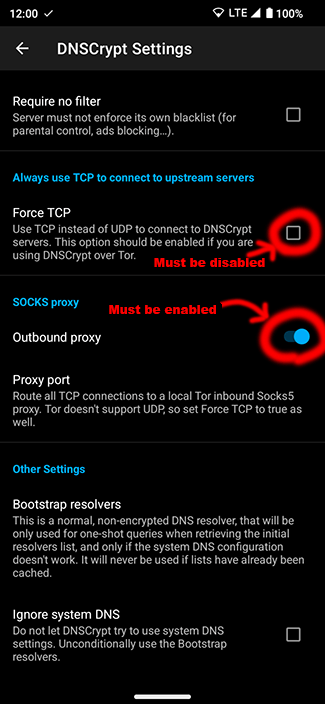
Now comes the DNSCrypt settings. We must verify that DNSCrypt queries are being sent through the SOCKS5 Proxy by going to Sidebar → DNSCrypt Settings and verifying that "Outbound proxy" is enabled, and with a Proxy port of "5353" Also make sure to disable Sidebar → DNSCrypt Settings → Force TCP. This will increase the performance of DNSCrypt.
Setup WG-Tunnel
One way to download WG-Tunnel is through its f-droid repo, at: https://github.com/wgtunnel/fdroid
Once you have WG-Tunnel install, you have to go to your VPN provider's website and look for an option to use a Wireguard client. You can get some privacy-first VPN recommendations here: https://www.privacyguides.org/en/vpn/
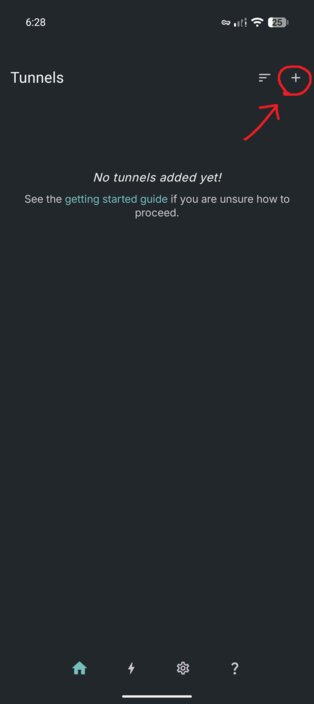
After generating your wireguard .conf file, you have to import it in WG-Tunnel. To do that, simply click the "+" button on the top-right corner, choose "Add from file or zip", and then select your wireguard file.
Due to issue #1090, you must run the app in VPN mode at least once to get working notifications. So you have to enable the profile you created, and then disable it.
Next go to the settings, tap "App mode" and set it to "Proxy (experimental)". Then tap "App mode" again and enable "SOCKS5 Proxy". Set the "SOCKS5 bind address" to 127.0.0.1:5353. Do NOT set a username and password.
In the WG-Tunnel settings. also enable "Android integrations → Start on boot".
Once that's all done, you can activate the profile you created.
Connect InviziblePRO to WG-Tunnel
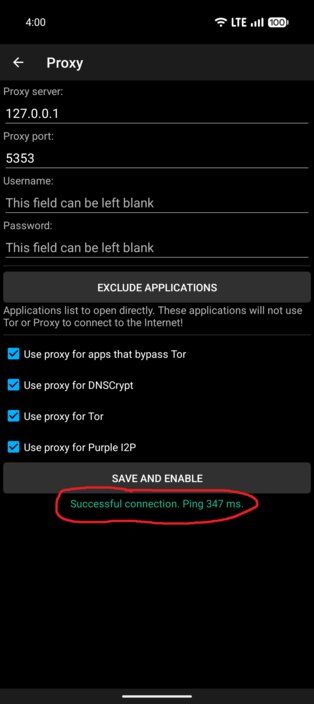
Go to Sidebar → Common Settings → Use socks5 proxy. There, leave “Proxy server” as “127.0.0.1” and set “Proxy port” to 5353. Also make sure to enable all of these settings in that screen:
- Use proxy for apps that bypass Tor.
- Use proxy for DNSCrypt.
- Use proxy fr Tor.
- Use proxy for Purple I2P.
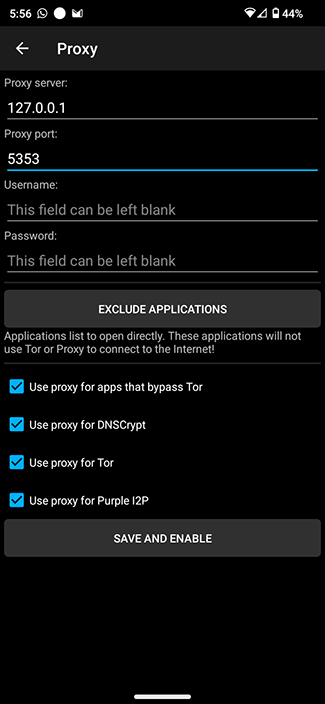
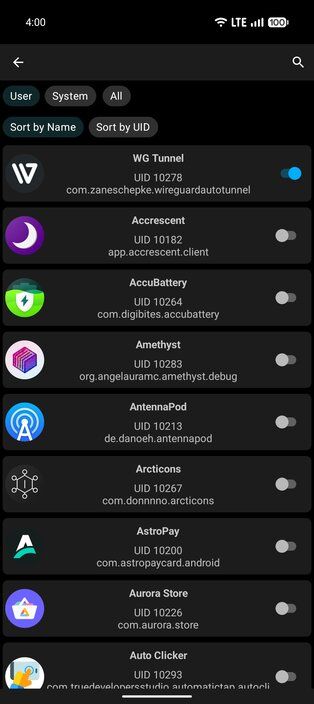
One last thing we must do in this screen is exclude WG-Tunnel. Press the “Exclude applications” button, and enable exclusion for WG-Tunnel.
Once that's done go back and press the "Save and enable" button. You should get a positive message like "Successful connection. Ping 300 ms" (the number might be higher or lower, that doesn't matter as long as it says successful connection). The connection will fail if there aren't any active profiles in WG-Tunnel.
Prevent app sleep
It's very important that we prevent InviziblePRO and WG-Tunnel from being put to sleep by the OS. The instructions to do this vary between devices from different brands. Instructions to do this are available at https://dontkillmyapp.com.
Start everything
To start this setup, first go to WG-Tunnel and make sure you have an enabled profile. Next go to InviziblePRO and click the big blue "Start" button. Simple as that!
Verify everything works
You can verify that the VPN is working by going to any of the following sites with the VPN activated:
Hardening
The very last step in this guide is to harden the setup to prevent network leaks outside the firewall and VPN.
In the Android settings, go to VPN configuration and enable these settings for InviziblePRO:
- Block network connections without VPN.
- Always on VPN.
F.A.Q.
How do I make sure InviziblePRO and WG-Tunnel stay updated?
You must open your F-Droid client periodically and update both apps from there.
Will this protect my Android Work profile?
No. Although it might be possible. Feel free to sponsor me for a guide on this subject.
Which DNS resolvers are used in this setup?
When using WGTunnel + InviziblePRO, the DNS in InviziblePRO is used, not the system DNS, nor the VPN DNS. The DNS traffic is also always wrapped in the Wireguard protocol.
Why isn't there username and password authentication enabled for the SOCKS5 proxy?
InviziblePRO does not support username and password authentication when forwarding DNS queries to the SOCKS5 proxy. Regardless, there is no security risk caused by this, because no one can connect to the SOCKS5 proxy from outside devices due to it being bound to the localhost interface. Also, no adversarial apps could connect to the SOCKS5 proxy to try and bypass the InviziblePRO firewall restrictions because part of those restrictions include limiting LAN access.
How were the security tests performed?
To verify that this setup was safe, I setup a wifi network where all traffic received/sent by the gateway was logged by wireshark. I then analyzed that traffic capture and didn't find any information leaks. All traffic was just Wireguard.
The rest of the tests were performed using the websites mentioned in the "Verify everything works" section
How do I block an app's internet access?
Open Invizible and go to Sidebar → Firewall.

How do I setup DNS filtering?
Open Invizible and go to Sidebar → DNSCrypt Settings → Blacklist.

How do I exclude an app from the VPN?
To exclude an app from the VPN (but keep the Firewall rules and DNS filters active) go to Sidebar → Common Settings → Use socks5 proxy → Exclude Applications and exclude the app you want from there.
Having trouble?
For a one-time USD$10 donation you can get one-on-one troubleshooting support for any of my guides/projects. I'll help you fix any issue you may have encountered regarding usage/deployment of one of my guides. More info in my Github Sponsors profile.